If you recently updated your Hisense Smart TV running VIDAA OS and noticed that high-octane gaming on your PlayStation 5, Xbox Series X, or PC looks blurry, ghosted, or noticeably sluggish, you are not alone. The 2026 VIDAA OS firmware update introduced upgraded picture-processing algorithms intended to enhance cinematic sports playback. However, for real-time video games, these settings can unexpectedly overwrite custom low-latency configurations and re-enable motion interpolation (MEMC), introducing severe motion blur and input lag.
This guide provides a quick diagnostic process for Hisense TV troubleshooting to help you determine whether your screen issues stem from basic software configuration resets or require an authorized hardware assessment, followed by the exact Picture Settings needed to restore sharp 120Hz display performance for Gaming.
Step 1: Software Glitch vs. Hardware Fault Diagnosis
Before assuming your panel or HDMI ports have suffered a hardware malfunction post-update, use the quick diagnostic framework below to isolate software settings from underlying panel failure:
Is It a Software Configuration Issue or Hardware Defect?
- Perform a Quick Input Test: Switch from your gaming console input (e.g., HDMI 1 or HDMI 2) to a built-in streaming app like YouTube or DStv Stream.
- If fast-moving content on native apps displays without vertical lines, flickering, or double images, your TV panel hardware is functioning correctly. The blur on your console input is strictly a Picture Settings mismatch caused by the update.
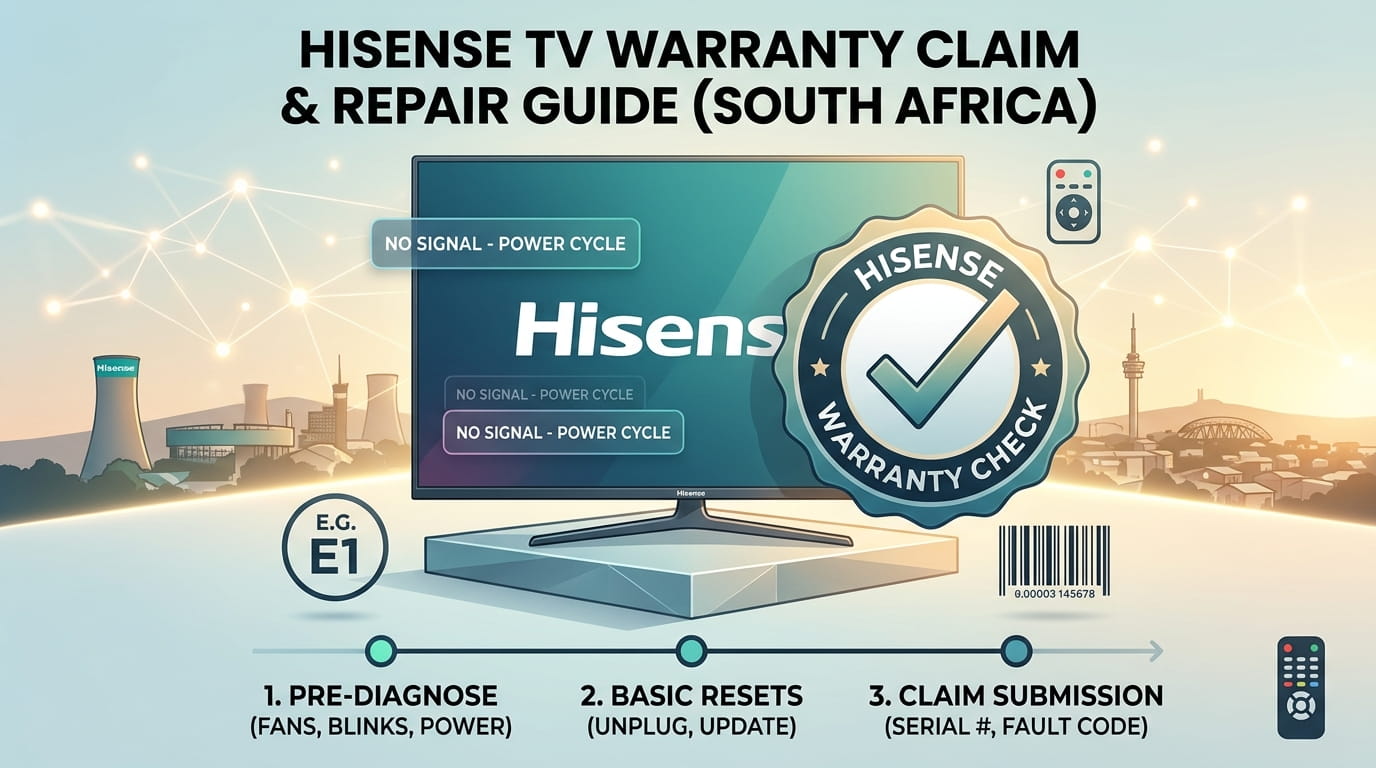
- Check for VRR & ALLM Handshake Bugs: If the screen flashes black or loses signal when launching a game in 120Hz, perform a 60-second power cycle. Unplug the TV cable from the wall outlet, hold the TV's physical power button for 30 seconds, wait 2 minutes, and reconnect.
Step 2: Correcting VIDAA OS Picture Settings for Gaming
The latest firmware update often resets input-specific profiles back to "Standard" or "Vivid" picture modes. Follow these steps on your Hisense remote control to eliminate gaming blur:
1. Enable Enhanced HDMI Format
To ensure full HDMI 2.1 bandwidth for 4K @ 120Hz and Variable Refresh Rate (VRR):
- Go to Settings > Inputs > HDMI Format.
- Select the HDMI port connected to your console and switch from Standard to Enhanced Format.
2. Lock in Game Mode (ALLM)
- Press the Quick Settings / Menu button on your Hisense remote while on your console input.
- Navigate to Picture Mode and select Game.
- Ensure Auto Low Latency Mode (ALLM) is toggled ON.
3. Disable Motion Smoothing (Ultra Motion)
The primary culprit behind gaming blur is Hisense's frame interpolation software (Ultra Motion / Smooth Motion):
- Navigate to Settings > Picture > Picture Mode Settings > Expert Settings / Clarity.
- Locate Ultra Motion (or Motion Enhancement).
- Set this option strictly to OFF. (Alternatively, if using Custom mode, set De-Blur to 10 and De-Judder to 0).
- Turn Noise Reduction and MPEG Noise Reduction to OFF to eliminate image smearing around moving characters.
Step 3: Recommended Post-Update Settings Summary
Refer to this configuration table to verify all gaming-critical parameters on your Hisense VIDAA OS TV:
| feature | recommendedSetting | impact | postUpdateFix |
|---|---|---|---|
| Game Mode / Auto Low Latency Mode (ALLM) | ON (Auto) | Bypasses heavy image post-processing; reduces input latency under 15ms. | Toggle OFF and ON again after update if greyed out. |
| Ultra Motion / Motion Enhancement | OFF or Custom (Blur Reduction: 10, Judder: 0) | Prevents soap opera effect and ghosting during high-frame-rate movement. | Disable globally across all HDMI inputs. |
| HDMI Dynamic Range | Full (Matching console RGB Full output) | Restores shadow detail and prevents washed-out dark scenes in games. | Set HDMI Format to 'Enhanced Format' (HDMI 2.1). |
| Noise Reduction / MPEG Noise Reduction | OFF | Eliminates smear artifacts around fast-moving character models. | Ensure override applies to 'Current Source Only' or 'All Sources'. |
Step 4: When to Request an Assessment
If you have adjusted all motion settings, disabled noise reduction, swapped to a certified Ultra High Speed HDMI cable, and performed a hard factory reset under Settings > System > Reset & Factory Default, but continue to experience horizontal trailing lines or constant screen flickering, your television may require an official technician assessment. You can verify your warranty status and lodge a direct repair claim through Hisense South Africa.
Summary Checklist
- [ ] Changed HDMI Port Format to Enhanced Format.
- [ ] Switched Picture Mode to Game Mode.
- [ ] Toggled Ultra Motion / Motion Enhancement to OFF.
- [ ] Disabled Noise Reduction and MPEG Noise Reduction.
- [ ] Performed a 60-second power cycle if VRR handshakes fail.
Experiencing a similar issue? Contact us for a no-obligation quote. We're here to help.
If you know what parts to look for, please visit Tech and Bids to search for what you need.