Streaming your favorite live sports, news, and entertainment on a Hisense TV has never been easier. With MultiChoice expanding streaming support, the DSTV Stream app is fully integrated across modern Hisense platforms, including Hisense VIDAA OS and Android/Google TV models.
Whether you are setting up your TV for the first time or encountering unexpected error codes during playback, this how-to-guide walks you through the step-by-step connection process and essential Hisense TV troubleshooting steps.
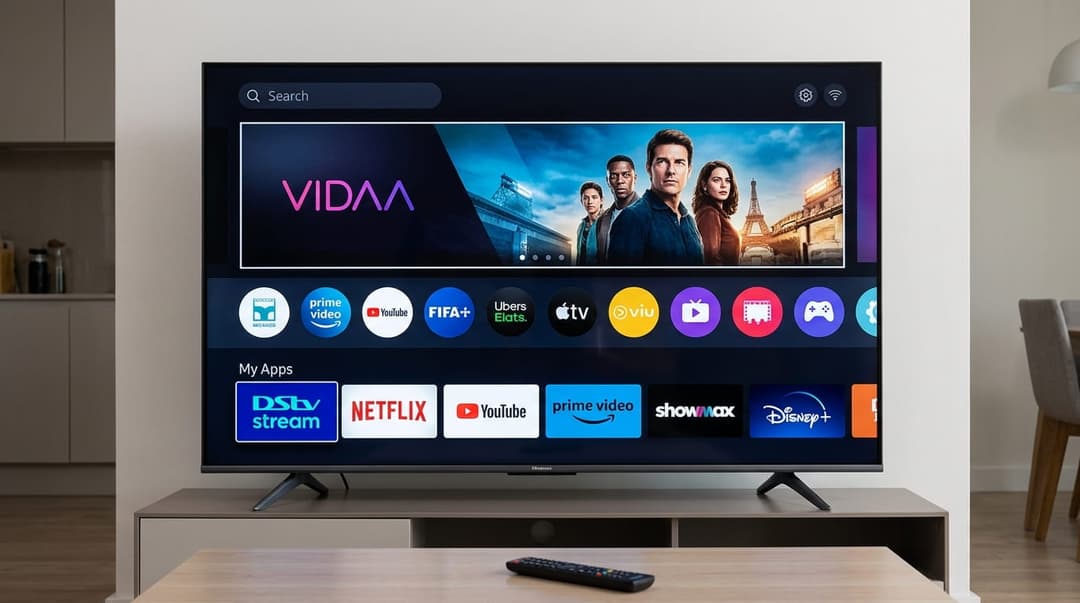
Figure 1: The Hisense VIDAA interface showing easy access to streaming apps.
Step 1: Verify TV Compatibility
Before starting, ensure your Hisense Smart TV running VIDAA OS or Android TV meets the minimum requirements for DSTV Stream in 2026.
OS Compatibility Matrix
Refer to the below data table for quick reference:
| platform | supportedVersions | installationMethod | recommendedAction |
|---|---|---|---|
| Hisense VIDAA OS | VIDAA U4, U5, U6, VIDAA 7+ | VIDAA App Store Search | Update system firmware if app is missing |
| Hisense Android / Google TV | Android TV 9.0+ | Google Play Store Search | Sign in with Google Account & download directly |
- VIDAA OS: Supported on VIDAA U4 and newer (VIDAA 7+ recommended).
- Android / Google TV: Supported on Android 9.0 and above.
Tip: If your TV runs an older version of VIDAA OS (such as VIDAA U2 or U3), the native app may not appear in the store. In this case, an external media streamer (such as a Google TV Dongle or TV Box) will be required.
Step 2: How to Install DSTV Stream on Hisense VIDAA OS
Follow these simple steps for TVs powered by Hisense's custom VIDAA platform:
- Turn on your Hisense TV and press the Home button on your remote control.
- Navigate to the VIDAA App Store (or "Apps" icon).
- Select the Search Icon and type in "DSTV Stream".
- Select the app from the results and click Install / Download.
- Once downloaded, open the app from your home screen.
Step 3: Activating and Linking Your Account
Once the app is launched, you must pair it with your active DSTV subscription:
- Open the DSTV Stream app on your Hisense TV.
- An activation code (or QR code) will appear on the TV screen.
- On your smartphone or computer, open your web browser and go to
dstv.com/link. - Sign in with your registered DSTV Connect credentials (email/mobile number and password).
- Enter the unique code displayed on your Hisense TV screen and click Submit.
- Your TV screen will automatically refresh and open your DSTV home screen.
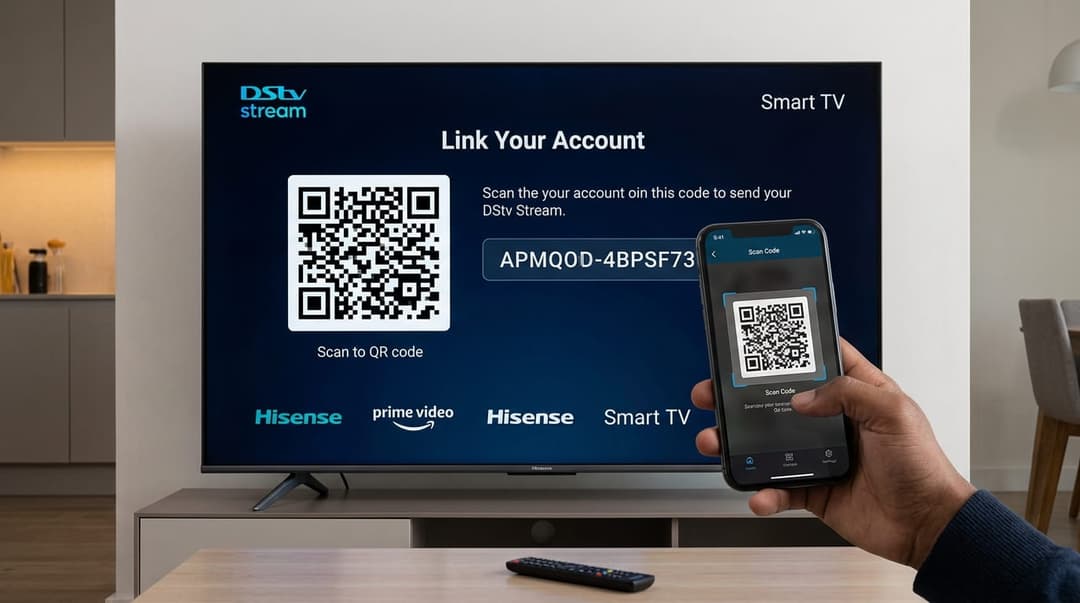
Figure 2: Linking your DSTV Stream account using an activation code or QR code.
Step 4: Hisense TV Troubleshooting & Fault Code Guide
Encountering an error while attempting to stream? Use this quick breakdown to determine whether your fault requires a simple software reset or a deeper network assessment.
Diagnostic Matrix for Common Fault Codes
| code | meaning | resolutionType | fixSteps |
|---|---|---|---|
| DStv Error E32 / DStv App Error 400 | Subscription or Session Token Expired | Basic Reset / Re-link | Sign out of the DSTV Stream app, clear cache, and sign back in using a fresh OTP. |
| Error Code DR-1001 / DRM Failure | Digital Rights Management handshake failed | System Reset / Assessment | Perform a hard power cycle. If persistent on VIDAA OS, force a TV firmware update. |
| Network Error / Error 500 | Connection Timeout or DNS blocking | Network Reset | Restart router and TV. Switch DNS settings to 8.8.8.8 under Network Settings. |
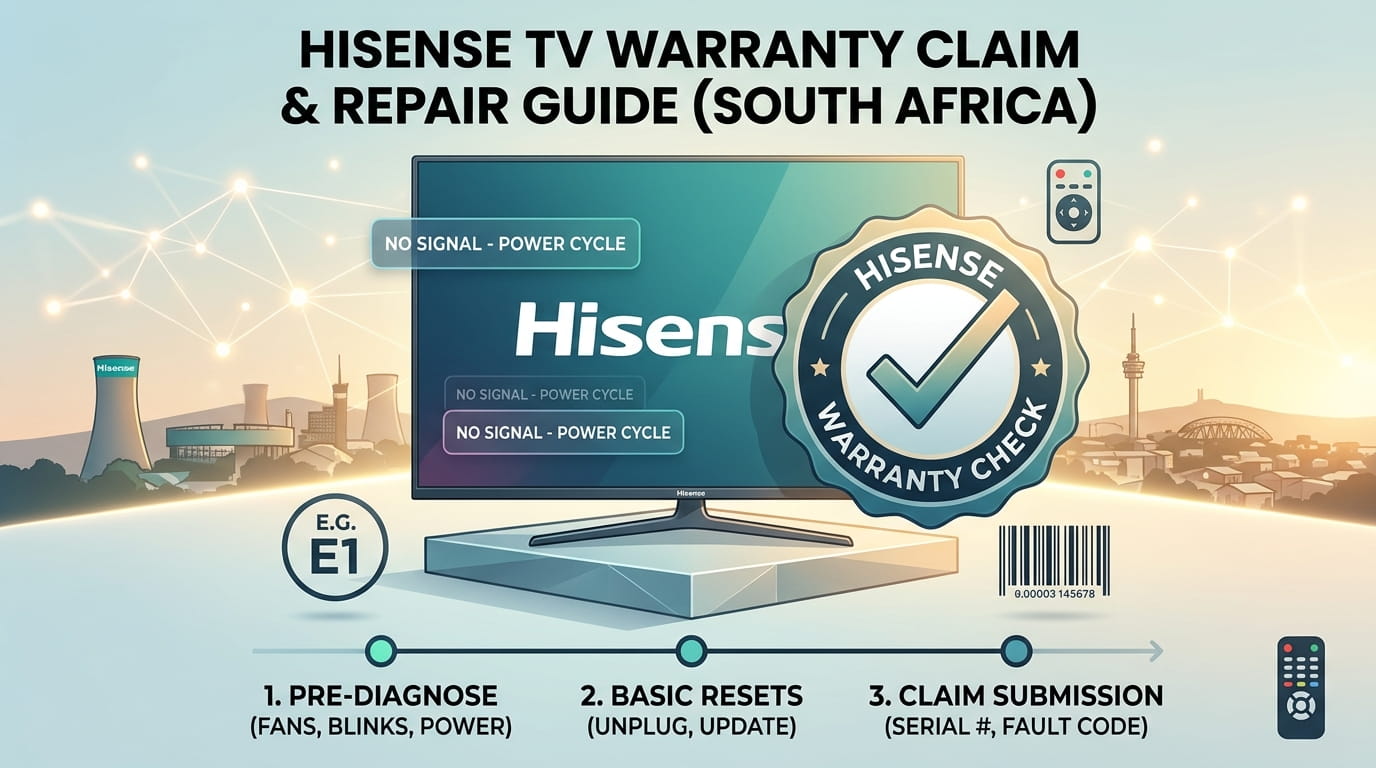
How to Perform a Hard Power Reset on Hisense TV
If the DSTV Stream app freezes or throws persistent error codes, perform a power cycle to flush the internal memory cache:
- Unplug the power cord from the wall socket while the TV is ON.
- Press and hold the Physical Power Button located directly on the TV frame for 30 seconds.
- Wait 2 minutes before plugging the cord back into the wall socket.
- Turn on the TV and relaunch DSTV Stream.
Summary & Next Steps
Connecting DSTV Stream to your Hisense TV is quick when your Hisense VIDAA or Android system is updated. By following these steps and using basic resets when fault codes occur, you can resolve most streaming issues without needing technical support.
Experiencing a similar issue? Contact us for a no-obligation quote. We're here to help.
If you know what parts to look for, please visit Tech and Bids to search for what you need.