An unresponsive television remote is one of the most frustrating everyday electronics issues. Whether your remote suddenly stopped turning the TV on, lost its voice command functionality, or requires extreme force just to change the volume, identifying the root cause can save you the cost of unnecessary replacements.
This guide provides a systematic workflow to diagnose whether your issue stems from simple battery terminal oxidation, signal interference, loss of Bluetooth pairing, dirty carbon contact pads, or an actual TV IR receiver failure.
1. Step-By-Step: The 60-Second Remote Hard Reset
Before opening your remote control or buying replacement batteries, perform a complete power drain reset. Modern remotes—especially Smart TV remotes with motion sensors and voice microchips—can experience logic freezes.
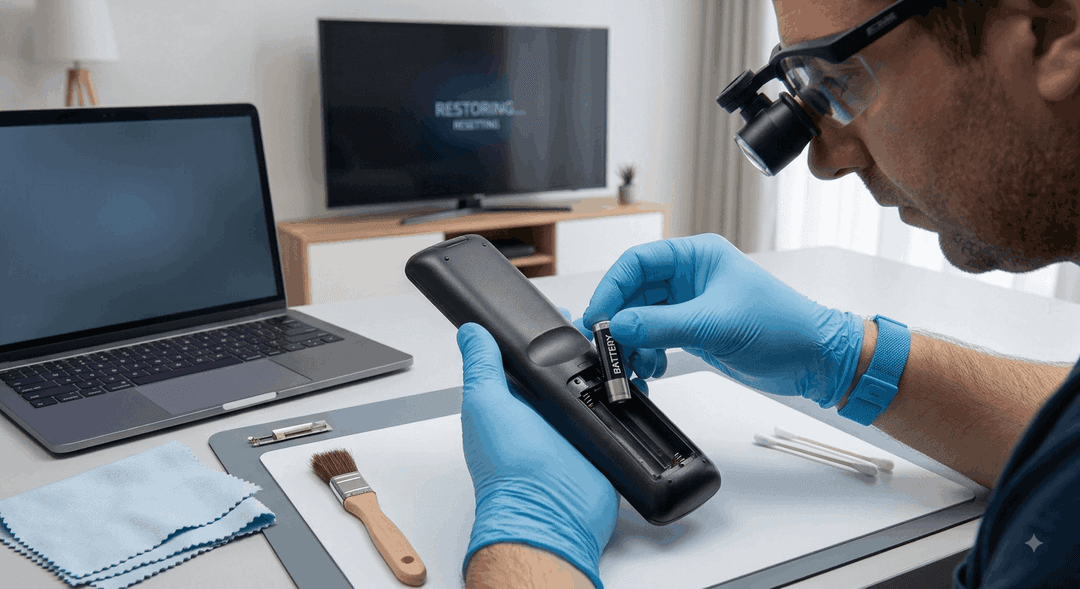
Figure 1: Removing batteries and pressing every button to discharge residual current from the remote's microchip.
Power Drain Procedure:
- Remove the Batteries: Open the rear compartment cover and take out both batteries.
- Clear Residual Charge: Press and hold the physical Power Button on the remote for at least 20 seconds.
- Exercise All Buttons: Press every single button on the remote keymat once or twice. This clears trapped dust/debris and releases any stuck key micro-switches that keep the remote in a constant transmitting loop.
- Inspect Battery Terminals: Check the metal contacts inside the compartment for white corrosion, rust, or oxidation. Clean with a dry cotton swab or fine sandpaper if necessary.
- Insert Fresh Batteries: Install a brand-new set of alkaline batteries (avoid mixing old and new batteries or using low-voltage rechargeable cells unless specified).
2. Testing Infrared (IR) Output: The Phone Camera Trick
Traditional television remotes output light in the infrared spectrum (around 940nm wavelength), which is invisible to the human eye. However, the digital sensors inside smartphone cameras can detect infrared illumination, allowing you to instantly perform a test infrared remote with phone camera diagnostic.

Figure 2: Observing the bright purple/white LED pulse through a smartphone camera display while pressing remote buttons.
How to Test IR Signal Output:
- Open the Camera App on your smartphone. (Note: On iPhones, the front-facing selfie camera or secondary lens works best as it lacks an aggressive IR-cut filter).
- Point the front emitter bulb (the clear or dark plastic LED on the front tip of the remote) directly toward the camera lens from a few inches away.
- Press and hold various buttons (Power, Volume, Channel Up) while looking at your smartphone screen.
- Evaluate the Results:
- Bright Flashing/Purple Light: The remote's microchip, button membrane, and IR diode are working. The issue lies with the TV's IR receiver board or an obstacle blocking the TV sensor.
- No Light on Any Button: The remote is not generating a signal (dead batteries, corroded terminal, or blown IR transistor).
- Light on Some Buttons, Dead on Others: The conductive carbon layer on specific rubber pads has worn off or become dirty.
3. Smart TV Remote Pairing Reset (Bluetooth / RF Remotes)
Modern Smart TVs (Samsung Smart Remote, LG Magic Remote, Sony Voice Remote, Fire TV, Roku) use Bluetooth or Radio Frequency (RF) instead of line-of-sight infrared for advanced features like air-mouse navigation and voice search. If the power button works (via fallback IR) but no other button responds, the remote has lost its pairing.
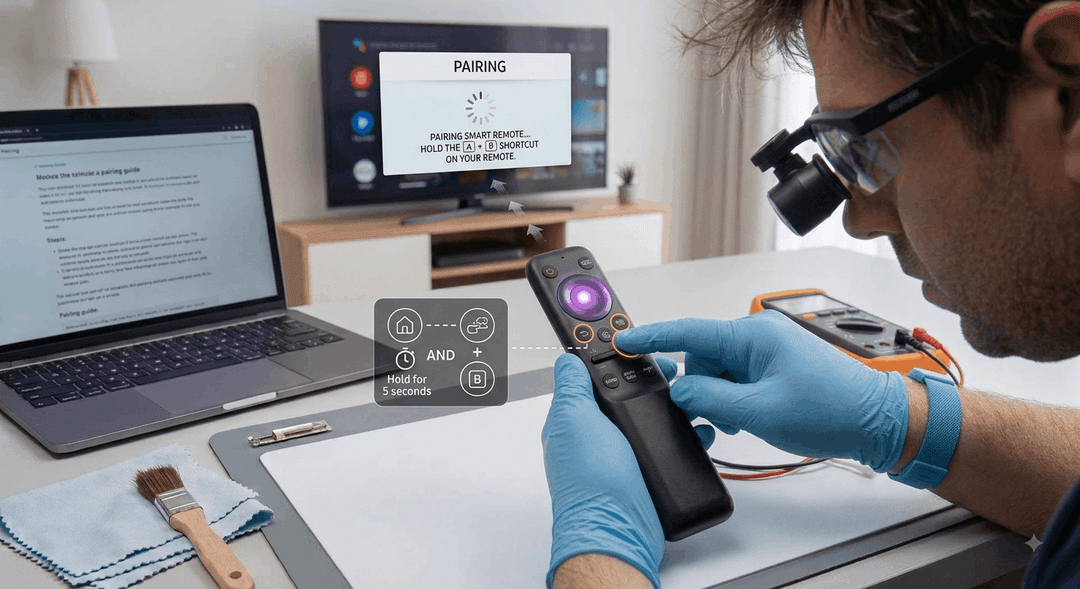
Figure 3: Executing a smart TV remote pairing reset by holding brand-specific button combinations near the TV bezel.
Universal Smart Remote Re-Pairing Combinations:
| tv manufacturer or platform | key combination to press hold | visual indicator result |
|---|---|---|
| Samsung Smart TV | Hold Return / Back + Play/Pause simultaneously for 3–5 seconds | On-screen "Connecting to Smart Remote" pop-up |
| LG WebOS (Magic Remote) | Hold Home + Back simultaneously for 5 seconds | Power LED flashes 3 times to confirm pairing reset |
| Sony Android / Google TV | Hold Volume Down + Voice/Mic button for 3 seconds | On-screen Bluetooth pairing prompt appears |
| Roku TV / Streaming Stick | Hold Pairing Button in battery bay (or Home + Back) for 5 sec | Status LED flashes rapidly until connected |
| Fire TV / Android TV | Hold Home button for 10–15 seconds close to the unit | Pairing confirmation message appears on screen |
4. Fixing Sticky or Dead Buttons: Cleaning Dirty Carbon Contact Pads
If your remote works for most buttons but key inputs like Power or Volume require immense thumb pressure, the culprit is almost always grease, spilled liquid, or degraded silicone oil coating the conductive carbon contacts.

Figure 4: Performing a dirty remote rubber pad repair by cleaning the circuit board traces and carbon pills with Isopropyl Alcohol.
Disassembly & Carbon Pad Repair Guide:
- Open the Housing: Remove batteries and gently pry open the seam of the remote housing using a plastic spudger or guitar pick.
- Inspect the PCB & Rubber Keymat: Look for a sticky, oily film on the gold/copper traces of the printed circuit board (PCB) and under the black carbon "pills" on the bottom of the rubber buttons.
- Clean Contacts:
- Dampen a micro-fiber cloth or cotton swab with 99% Isopropyl Alcohol (IPA).
- Gently wipe down all circuit board contact traces until completely free of oil and residue.
- Clean the black conductive carbon dots under each rubber button.
- Restore Carbon Conductivity (If Worn): If a button remains dead after cleaning, the carbon pill has worn away. Apply a tiny dot of conductive carbon paint or affix a pre-cut conductive foil repair pad to the underside of the rubber button.
- Reassemble & Test: Snap the housing halves back together, reinstall batteries, and test responsiveness.
5. Summary Diagnostic Flowchart
Use this decision matrix to determine whether you can fix your remote at home or need to order a replacement part:
                 [TV Remote Not Responding]
                            │
                            ▼
               Perform 60-Sec Hard Drain Reset
               & Install Fresh Alkaline Batteries
                            │
                  ┌─────────┴─────────┐
                  ▼                   ▼
             [Resolved]        [Still Dead]
                  │                   │
                  ▼                   ▼
              (Complete)    Test Emitter with Phone Camera
                                      │
                  ┌───────────────────┴───────────────────┐
                  ▼                                       ▼
           [Purple Light Visible]                    [No Light / Dead]
                  │                                       │
                  ▼                                       ▼
        Is it a Smart/BT Remote?                 Clean PCB / Rubber Pads
                  │                              or Repair Carbon Pills
         ┌────────┴────────┐                              │
         ▼                 ▼                     ┌────────┴────────┐
       [Yes]              [No]                   ▼                 ▼
         │                 │                [Restored]       [Still Dead]
         ▼                 ▼                     │                 │
  Execute Pairing   Check TV IR Receiver         ▼                 ▼
    Reset Combo    Board / Unblock Sensor    (Complete)     Replace Remote
                                                            (Check OEM Table)
By following this guide—from the quick test infrared remote with phone camera method to performing a smart TV remote pairing reset or dirty remote rubber pad repair—homeowners can resolve a TV remote not responding fix without paying for unnecessary technician visits.
Experiencing a similar issue? Contact us for a no-obligation quote. We're here to help.
If you know what parts to look for, please visit Tech and Bids to search for what you need.