When a modern television freezes on a streaming app, drops its Wi-Fi connection after a load-shedding outage, or refuses to recognize an HDMI console, performing a Factory Reset is often the fastest way to clear corrupted firmware caches and restore out-of-the-box stability. However, when a screen goes black or a standby light begins flashing a rhythmic fault pattern, endlessly forcing a reset will not revive a blown power supply rail.
Understanding how to return your television to its Default state—and knowing when to stop troubleshooting and book a bench-level assessment—protects both your time and your hardware. Below is a complete technician reference covering standard resets, hidden Service Mode entry sequences, and fault code triage across every major Smart TV brand.

Figure 1: Flat-lay workbench photograph showing a standard TV remote next to a dedicated technician Service Remote, a digital multimeter, and a mainboard with a glowing standby LED.
Standard Factory Reset vs. Service Mode: Know the Difference
Before pressing a single button, it is critical to separate a consumer Factory Reset from an engineering Service Mode reset:
- Consumer Factory Reset (Default): Wipes user accounts, downloaded apps, Wi-Fi credentials, and picture/sound calibrations, returning the operating system (Tizen, webOS, VIDAA, or Google TV) to its initial setup wizard. It does not alter low-level hardware voltages, tuner regions, or panel timing parameters.
- Service Mode (Factory Menu): Accessed using a specialized Service Remote or a multi-key Service code, this hidden engineering layer controls panel ID mapping, white-balance ADC calibration, EDID tables, and error logs. Changing the wrong hex value inside Service Mode can permanently blank your display or brick the mainboard.
Technician Rule of Thumb: Never enter Service Mode just to fix a frozen Netflix app or a Wi-Fi dropout. Reserve Service Mode strictly for post-repair panel configuration or reading internal hardware error counters.
Brand-by-Brand Factory Reset & Service Code Directory
| brand | standard menu path | default pin | service code sequence | hardware button fallback |
|---|---|---|---|---|
| Samsung (Tizen OS) | Settings > All Settings > General & Privacy > Reset | 0000 | TV in Standby: Info > Menu > Mute > Power (IR Remote) | Unplug 60s; hold rear JOG/Power button for 15s while plugging in |
| LG (webOS) | Settings > General > System > Reset to Initial Settings | 0000 | Requires LG Service Remote (MKJ39170828) > IN-START (Code: 0413) | Unplug TV; hold chassis Power button for 30s to discharge capacitors |
| Hisense (VIDAA / Google TV) | Settings > Support > Reset to Factory Default (or System > About > Reset) | 0000 or 1234 | Settings > Sound > Balance (set to 0) > Press 1-9-6-9 on numeric keypad | Insert paperclip into recessed RST pinhole on rear I/O panel for 10s |
| Sony Bravia (Google TV) | Settings > System > About > Reset > Factory data reset | User-set or 0000 | TV in Standby: Display (i+) > 5 > Vol+ > Power | Hold Power + Vol- buttons on TV chassis while plugging AC cord back in |
| Skyworth / TCL (Android & Google TV) | Settings > Device Preferences (or System) > About > Reset > Factory Reset | 0000 or 1234 | Settings > Picture > Contrast (highlight) > Press 9-7-3-5 or 1-9-5-0 | Hold physical Power button on underside of bezel while reconnecting power |
Use the steps below—or reference the table above—to restore your specific brand back to Default settings.
1. Samsung Smart TV (Tizen OS)
Samsung televisions store cached app states aggressively, particularly after sudden power interruptions.
- Standard Menu Reset: Navigate to Settings > All Settings > General & Privacy > Reset. Enter the Default PIN (
0000unless previously changed) and confirm. - Hardware Fallback (Unresponsive Screen): Unplug the TV from the wall outlet for 60 seconds. Press and hold the physical JOG/Power button underneath the center Samsung logo for 15 seconds to drain residual board capacitance, then reconnect power.
- Service Code Entry: With the TV in Standby (red light on) and using an infrared remote with numeric keys, press Info > Menu > Mute > Power in rapid succession.
2. LG Smart TV (webOS)
LG's webOS keeps background memory locked even when turned off via the Magic Remote due to its "Quick Start+" standby feature.
- Standard Menu Reset: Press the Gear icon on your remote, then select All Settings > General > System > Reset to Initial Settings. Enter PIN
0000to restore factory defaults. - Hardware Fallback: Unplug the power cord, press and hold the physical power button on the bottom bezel for 30 seconds, wait two minutes, and plug back in.
- Service Mode Access: LG locks its engineering menu behind an IR handshake. You must use a dedicated Service Remote (such as model
MKJ39170828) and press IN-START followed by Service code0413. (Avoid pressingIN-STOPunless you intend to wipe the panel's factory hours and serial data.)
3. Hisense Smart TV (VIDAA & Google TV)
Hisense sets sold in South Africa run either VIDAA U or Google TV depending on the model year and series.
- Standard Menu Reset (VIDAA): Go to Settings > Support > Reset to Factory Default and enter
0000(or1234). - Standard Menu Reset (Google TV): Navigate to Settings > System > About > Reset > Factory data reset.
- Hardware Fallback: Locate the recessed RST pinhole near the rear HDMI/USB ports. With the TV powered on, press and hold a paperclip inside the pinhole for 10 to 15 seconds until the screen reboots.
- Service Code Entry: Open Settings > Sound > Balance, highlight the slider at
0, and type 1-9-6-9 on the remote. A smallMwill appear in the top corner; press Menu to open the factory menu.
4. Sony Bravia (Google TV / Android TV)
Sony Bravia sets feature a dedicated two-button hardware recovery combination if the Android OS becomes stuck in a bootloop.
- Standard Menu Reset: Open Settings > System > About > Reset > Factory data reset > Erase everything.
- Hardware Forced Reset: Unplug the TV. Press and hold both the Power and Volume Down (-) buttons directly on the television chassis (not the remote), plug the power cord back in while holding both buttons, and release once a green/white LED illuminates on the front bezel.
- Service Code Entry: From Standby, press Display (i+) > 5 > Volume Up (+) > Power on a standard Sony IR remote.
5. Skyworth & TCL (Android TV / Google TV)
Both Skyworth and TCL share similar MediaTek and Realtek mainboard architectures across their Android and Google TV lineups.
- Standard Menu Reset: Navigate to Settings > Device Preferences (or System) > About > Reset > Factory Reset. Use PIN
0000or1234if prompted. - Service Code Entry: Go to Settings > Picture > Contrast, highlight the Contrast bar without opening it, and enter 9-7-3-5 (or 1-9-5-0 on newer Google TV chassis) to inspect panel parameters and fault logs.
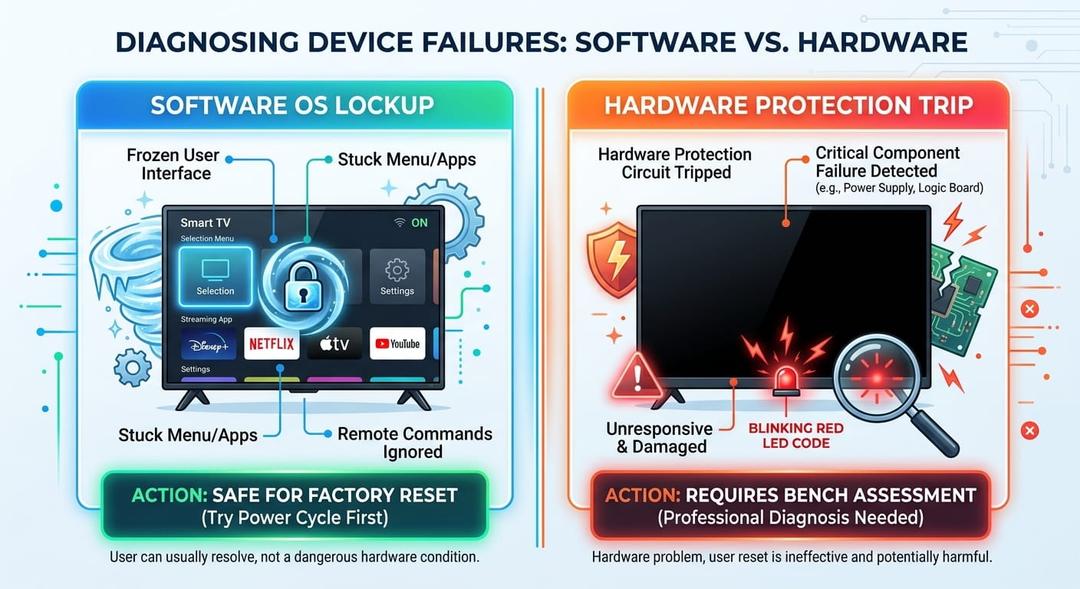
Figure 2: Split-screen comparison diagram showing 'Software OS Lockup' (on-screen menu freeze, safe for Factory Reset) on the left versus 'Hardware Protection Trip' (blinking red standby LED and black screen, requires bench assessment) on the right.
Fault Code Triage: When a Reset Won't Save the TV
A Factory Reset can only fix instructions executed by the main processor. If a physical power rail, backlight strip, or T-Con fuse has failed, the television's microcontroller shuts down power delivery before the operating system even loads. (See the table below for the full symptom-to-action breakdown.)
| symptom or fault | root cause | reset effective | recommended action |
|---|---|---|---|
| App crashes, Wi-Fi DNS errors, or sluggish menu navigation | Corrupted OS cache partition or network stack conflict | Yes — Standard Factory Reset resolves 90%+ of cases | Execute standard menu Factory Reset back to Default |
| Stuck on Brand Boot Logo (Bootloop) after power surge | Corrupted Android/Tizen boot sector or failing eMMC flash chip | Sometimes — Hardware button forced reset may recover OS | Attempt forced chassis button reset; if loop persists, book eMMC/mainboard assessment |
| Blinking Red Standby LED (2, 3, 4, or 5 blink cycles) | Hardware protection trip on Power Supply Unit (PSU) or LED backlight rail | No — Firmware never boots when PSU protection is active | Stop resetting; book bench assessment for PSU or backlight strip replacement |
| Sound plays normally, screen is black (Torch Test shows faint image) | Open-circuit LED backlight strip or failed LED driver boost circuit | No — Physical LED failure inside LCD panel assembly | Do not enter Service Mode; requires panel disassembly and backlight replacement |
| Inverted colors or upside-down image after third-party board swap | Incorrect LVDS/V-by-One panel ID mapping in firmware | Only via Service Mode | Use Service Remote / Service code to select matching Panel ID, then factory reset |
Clear Signs You Need a Basic Factory Reset
- Menu Lag & App Crashes: The picture is sharp and bright, but YouTube, Showmax, or Netflix crashes back to the home screen.
- Post-Outage Network Errors: The TV refuses to obtain an IP address or throws DNS/SSL certificate errors despite other devices working on the same router.
- HDMI Handshake Glitches: A gaming console or decoder shows "No Signal" after a power dip, even after swapping cables.
Red Flags That Require a Bench Assessment
Stop attempting resets and book a professional diagnostic assessment if you observe any of the following hardware fault indicators:
- Blinking Red Standby Light (2x, 3x, 4x, or 5x Cycles): Repeating LED blink sequences are hardware fault codes. They indicate that the Power Supply Unit (PSU) detected a short circuit or over-current condition on the backlight or mainboard rail.
- Audio Present, Screen Completely Black: Shine a bright smartphone flashlight at a 45-degree angle close to the screen while audio is playing. If you see faint moving shapes underneath the glass, your LED backlight array has burned out—a physical repair requiring suction-cup panel removal.
- Rhythmic Relay Clicking: If the TV clicks on, tries to power up, clicks off, and repeats this loop indefinitely, a primary switching MOSFET or secondary diode on the power board has shorted.
- Bootloop Unchanged After Forced Hardware Reset: If a Sony, Hisense, or Skyworth TV remains frozen on its brand logo even after a physical chassis button reset, the onboard eMMC flash memory chip has likely worn out and requires board-level replacement or mainboard reprogramming.
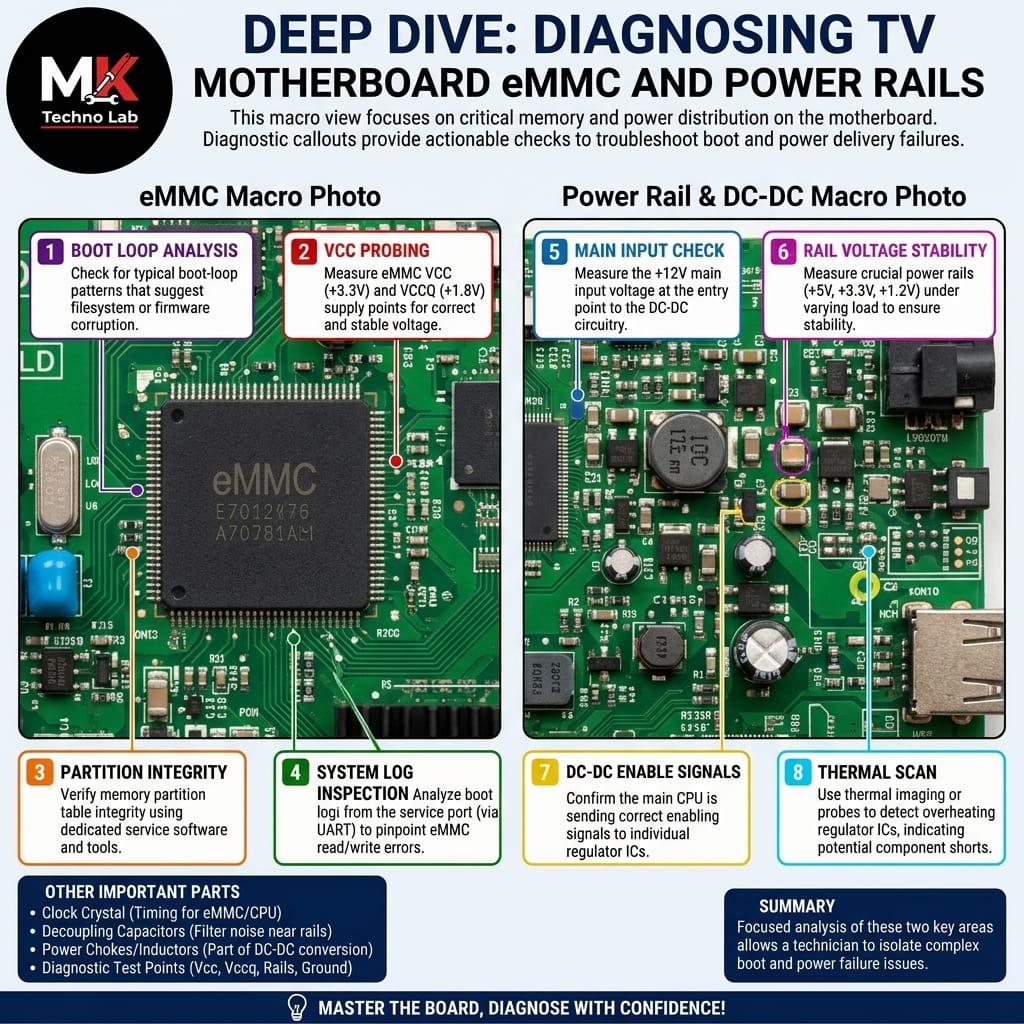
Figure 3: Close-up photograph of a television motherboard showing the eMMC flash memory chip and power supply connector rails with diagnostic callouts.
Best Practices Before You Reset
Before wiping your TV back to its Default configuration, snap a quick photo of your custom picture settings (backlight level, color temperature, and motion smoothing) and ensure you have your Wi-Fi password and streaming logins handy. If your screen refuses to display a menu—or greets you with a blinking standby code instead of a boot logo—skip the guesswork and have the power and backlight rails tested on a proper diagnostic bench before minor component wear escalates into full board failure.
Experiencing a similar issue? Contact us for a no-obligation . We're here to help.
If you know what parts to look for, please visit to search for what you need.
for free estimate or quote.