If your Dell Inspiron, Vostro, Latitude, or XPS laptop breaks down, you might be eligible to get it repaired completely for free under Dell’s official manufacturer warranty.
However, many laptop owners in South Africa prematurely pay third-party repair shops for issues covered under active service contracts—or fail to realize that a simple ePSA diagnostic reset could have resolved their problem without sending the laptop away for weeks.
In this guide, we will walk you through finding your Service Tag, checking your warranty status in South Africa, deciphering Dell ePSA fault codes, and navigating regional support transfer rules.
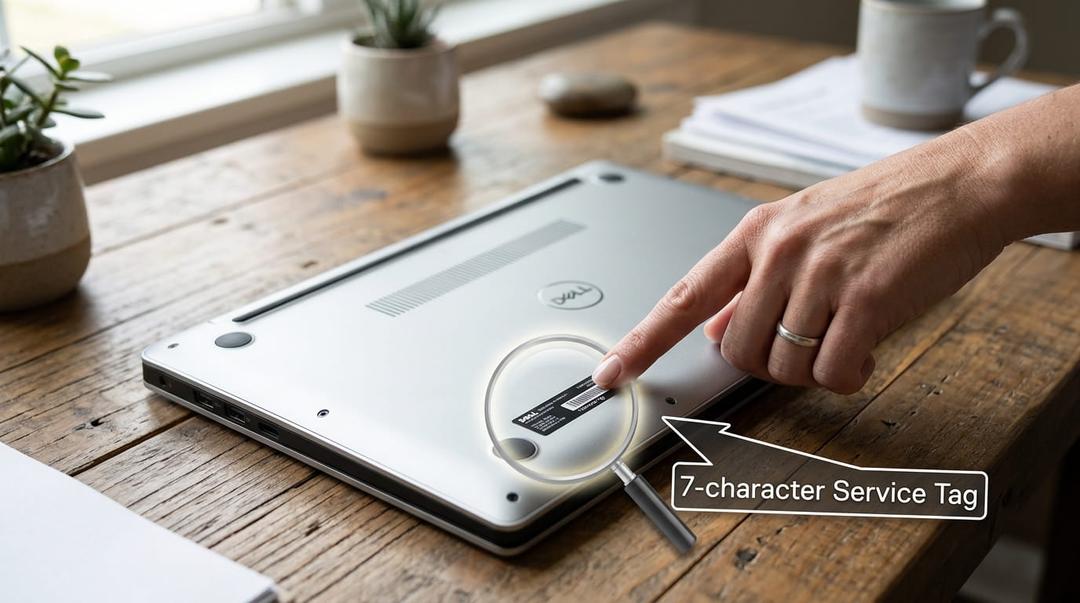
Figure 1: Locating the 7-character Dell Service Tag on the bottom sticker of a Dell laptop.
Step 1: Locate Your Dell Service Tag
To initiate a warranty check or technical support ticket, Dell relies on a unique 7-character alphanumeric code called a Service Tag (or its 11-digit equivalent, the Express Service Code).
Where to Find Your Service Tag:
-
Physical Sticker: Look at the bottom chassis of your laptop for a black or silver sticker labeled Service Tag (S/N).
-
Dell Command / SupportAssist: Open the built-in Dell SupportAssist app on Windows; your Service Tag is displayed on the main dashboard.
-
Command Prompt (Windows):
-
Press
Win + R, typecmd, and press Enter. -
Type the following command and press Enter:
wmic bios get serialnumber
-
-
BIOS / UEFI Menu: Restart your laptop and tap
F2repeatedly at the Dell logo to view the Service Tag on the main overview screen.
Step 2: Perform the Dell Warranty Check for South Africa
Once you have your Service Tag ready, verify your coverage status:
-
Go to the official portal:
dell.com/support/home/en-za. -
Enter your Service Tag into the search bar and click Search.
-
Review your coverage details under Warranty Status:
-
Expiration Date: Confirms if your laptop is still covered.
-
Service Level: Displays your tier (e.g., Basic Carry-In Service, Next Business Day Onsite, or ProSupport).
-
Country/Region: Ensures the warranty is registered for South Africa.
-
Note on Imported Laptops: If you purchased your Dell laptop overseas (e.g., in the US, UK, or Dubai), your local South African service center may reject warranty claims until you complete an official International Warranty Transfer on Dell's support site.
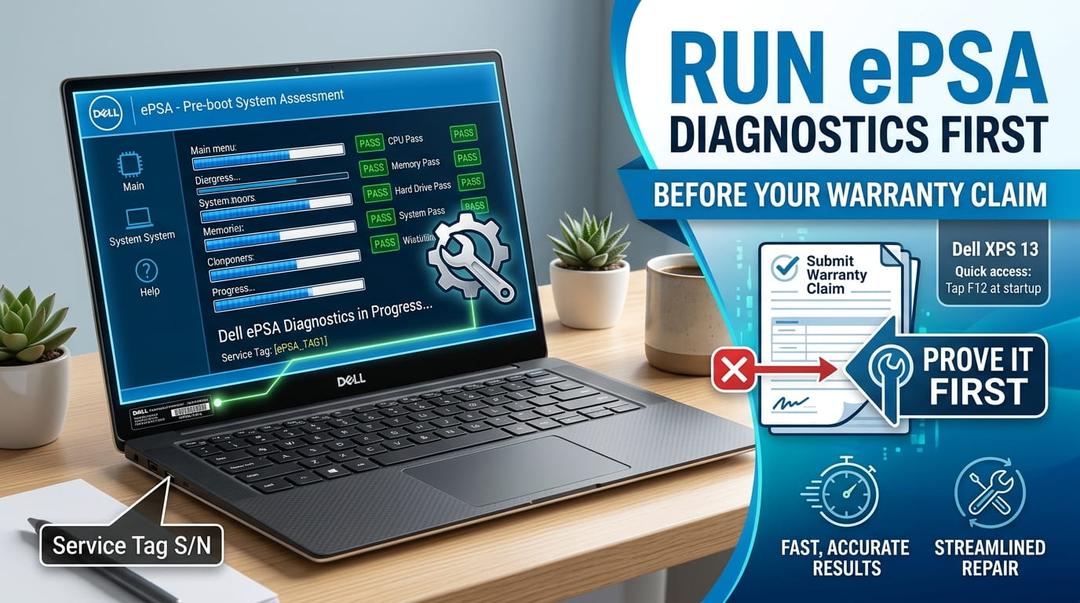
Figure 2: Running built-in Dell ePSA hardware diagnostics before submitting a warranty claim.
Step 3: Run Diagnostics & Evaluate Fault Codes (Reset vs. Repair)
Dell support centers will require you to run hardware diagnostics before authorizing a free warranty repair. Running these tests yourself helps you determine whether a basic reset can fix the issue or if an official assessment is needed.
How to Run Dell ePSA Diagnostics:
-
Turn off your laptop completely.
-
Hold down the
Fnkey and press the Power button, then release both. -
The system will launch ePSA (Enhanced Pre-boot System Assessment) and scan your hardware for errors.
Common Dell ePSA Error Codes & Recommended Actions
| Error | Component | Fault Type | Initial Reset Action | Warranty Action |
|---|---|---|---|---|
| Error Code 2000-0142 / 0146 | Hard Drive / SSD | Hardware Failure | Reseat drive or run full diagnostic pass | Requires hardware replacement. File immediate claim under active Dell warranty. |
| Error Code 2000-0151 / 0155 | Optical / Data Drive | Connection / Drive Fault | Check SATA connection; restart system | If unreadable after reset, request drive replacement via Dell support. |
| Error Code 2000-0122 / 0123 | System Memory (RAM) | Memory Module Fault | If error persists on single sticks, claim free RAM replacement under warranty. | |
| Error Code 2000-0333 / 0334 | Video / Display Panel | LCD / GPU Connection | BIST test (Hold 'D' + Power button) | If screen lines persist during hardware BIST, display panel replacement is covered. |
| Error Code 2000-0415 | CMOS / System Battery | Power Management / Battery | Drain residual power (flea power reset) | Battery wear covered within 1-year battery warranty window. |
Performing a Flea Power Reset Before Claiming Warranty
If your laptop fails to power on, exhibits flickering lights, or displays an ePSA power error, perform a Flea Power (Residual Power) Reset before booking a repair:
-
Shut down the laptop completely and disconnect the AC adapter.
-
Disconnect all external peripherals (USB drives, external monitors, mice).
-
Press and hold the Power Button for 30 seconds. This drains all residual electricity stored in internal capacitors.
-
Reconnect the AC power cable and turn on the laptop.
If the laptop powers up normally, the issue was caused by a temporary static lockup—saving you the hassle of a warranty repair claim.
Understanding Dell Service Tiers in South Africa
The turnaround time and repair location for your laptop depend on the active service tier linked to your Service Tag:
| Service Tier | Onsite Coverage | Response Time | Ideal For |
|---|---|---|---|
| Basic Mail-In / Carry-In | No (Customer sends unit to repair depot) | 3 - 7 Business Days | Standard hardware repairs when physical access is flexible. |
| ProSupport / ProSupport Plus | Yes (On-site technician dispatched) | Next Business Day (NBD) | Business-critical laptops requiring fast hardware turnaround across South Africa. |
| Accidental Damage Service | Depends on base tier | Next Business Day to 5 Days | Spills, drops, and cracked screens not covered under basic warranty. |
How to Claim Your Free Repair with Dell South Africa
If your laptop diagnosed a genuine hardware fault (such as ePSA Error 2000-0142) and your warranty is active, follow these steps to claim your repair:
-
Contact Dell South Africa Support: Reach out via the official Dell ZA WhatsApp desk, phone line, or online ticket system.
-
Provide Diagnostic Details: Give the agent your Service Tag, the ePSA Error Code, and the Validation Code generated during your diagnostic test.
-
Schedule Repair:
-
For Next Business Day Onsite plans, a technician will be dispatched to your location with replacement parts.
-
For Carry-In / Depot plans, you will be directed to an authorized service partner in major hubs like Johannesburg, Cape Town, or Durban.
-
Summary Checklist
-
Find your Service Tag via BIOS, Command Prompt, or chassis sticker.
-
Verify regional status on the Dell South Africa support portal and complete an international transfer if bought abroad.
-
Run ePSA diagnostics (
Fn+ Power button) to distinguish between simple system lockups and physical hardware failures. -
Claim your free repair by submitting your diagnostic error and validation codes to Dell technical support.
Experiencing a similar issue? Contact us for a no-obligation quote. We're here to help.
If you know what parts to look for, please visit Tech and Bids to search for what you need.