Experiencing persistent system crashes, sluggish performance, or recurring Blue Screen of Death (BSOD) errors on your laptop? Performing a Microsoft device reset is one of the most effective ways to restore system stability.
However, before sending your device to a service center or claiming coverage under your manufacturer warranty, it is vital to diagnose whether your issue is caused by software corruption or genuine hardware failure.
In this guide, we will explore how to safely reset your Windows 11 laptop while preserving your personal documents, how to read critical stop codes, and how regional support policies affect your warranty coverage.
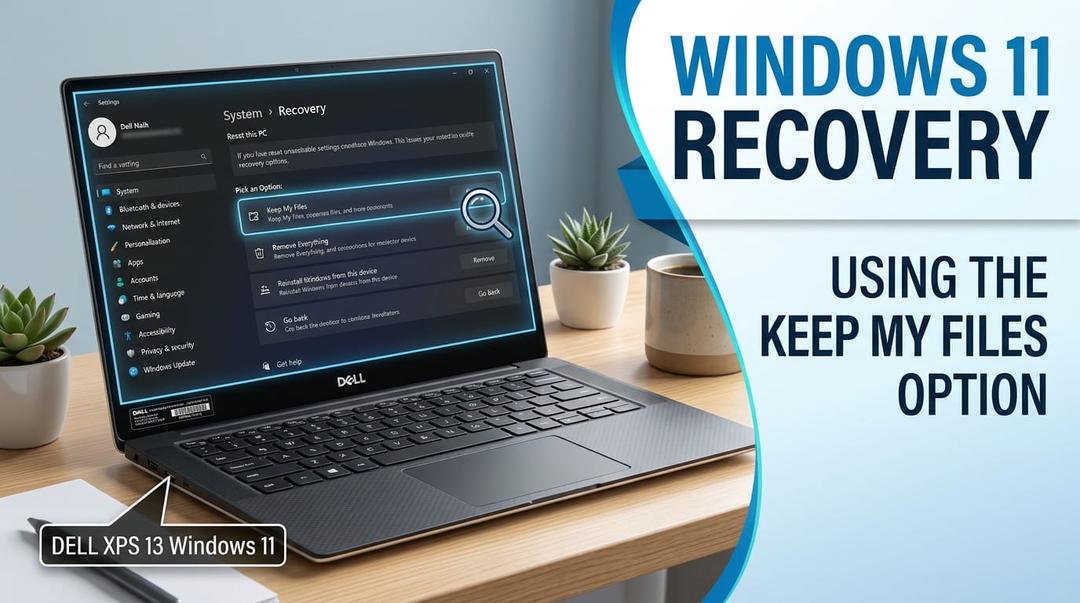
Figure 1: Navigating to Settings > System > Recovery to initiate a built-in device reset.
Step-by-Step: How to Reset Windows 11 Without Losing Personal Files
Microsoft provides an integrated recovery feature in Windows 11 called "Reset this PC." This allows you to reinstall the operating system completely while retaining user accounts, documents, photos, and personal data.
Important Note: While "Keep My Files" preserves your user profile data, it will remove desktop applications and drivers. Make sure to write down essential software licenses before proceeding.
Method 1: Initiating Reset from Desktop Settings
- Open Settings by pressing
Win + I. - Navigate to System > Recovery.
- Next to Reset this PC, click Reset PC.
- Select Keep my files in the wizard prompt.
- Choose your reinstallation method:
- Cloud Download: Recommended if your local Windows image might be corrupt (requires active internet).
- Local Reinstall: Faster option that rebuilds Windows using files stored on your local drive recovery partition.
- Review your settings and click Reset to begin.
Method 2: Resetting via Windows Recovery Environment (WinRE)
If your laptop cannot boot to the desktop, you can trigger a reset through WinRE:
- Turn on your laptop and hold the Power Button for 10 seconds as soon as the Windows logo appears to force a shutdown.
- Repeat this process 2 to 3 times until Preparing Automatic Repair appears.
- Click Advanced options > Troubleshoot > Reset this PC.
- Choose Keep my files and follow the on-screen prompts.
Diagnosing System Fault Codes: Reset vs. Hardware Assessment
Not every error requires a physical repair. Running a device reset can resolve up to 80% of software-based stop codes. However, hardware-level failures will persist even after a full system reinstall.
Use the table below to cross-reference common Windows stop codes and determine whether your laptop needs a basic reset or an official technician assessment:
| Code | Cause | ResetType | Action Required | Warranty Status |
|---|---|---|---|---|
| BSOD: CRITICAL_PROCESS_DIED | Corrupt system binaries or corrupted driver state | Keep My Files (Cloud Download) | Basic Reset / Software Fix | Covered by standard software troubleshooting; no hardware swap required. |
| BSOD: WHEA_UNCORRECTABLE_ERROR | Hardware fault (CPU, RAM, PCIe, or motherboard voltage) | Hardware Assessment Needed | Official Assessment | File a warranty claim with Microsoft or your OEM (Dell, HP, Lenovo). |
| BSOD: INACCESSIBLE_BOOT_DEVICE | Damaged boot partition, corrupted storage controller driver, or SSD failure | Keep My Files / Startup Repair | Basic Reset First | |
| Windows Update Error 0x800f081f / 0x80070002 | Missing or damaged servicing stack files | In-Place Upgrade / Local Reinstall | Basic Reset / Software Fix | Software issue; resolve locally or via OEM regional support desk. |
| BSOD: DRIVER_POWER_STATE_FAILURE | Incompatible GPU, Wi-Fi, or power management driver | Basic Reset / Driver Rollback | Software configuration issue; generally does not require hardware warranty claim. |
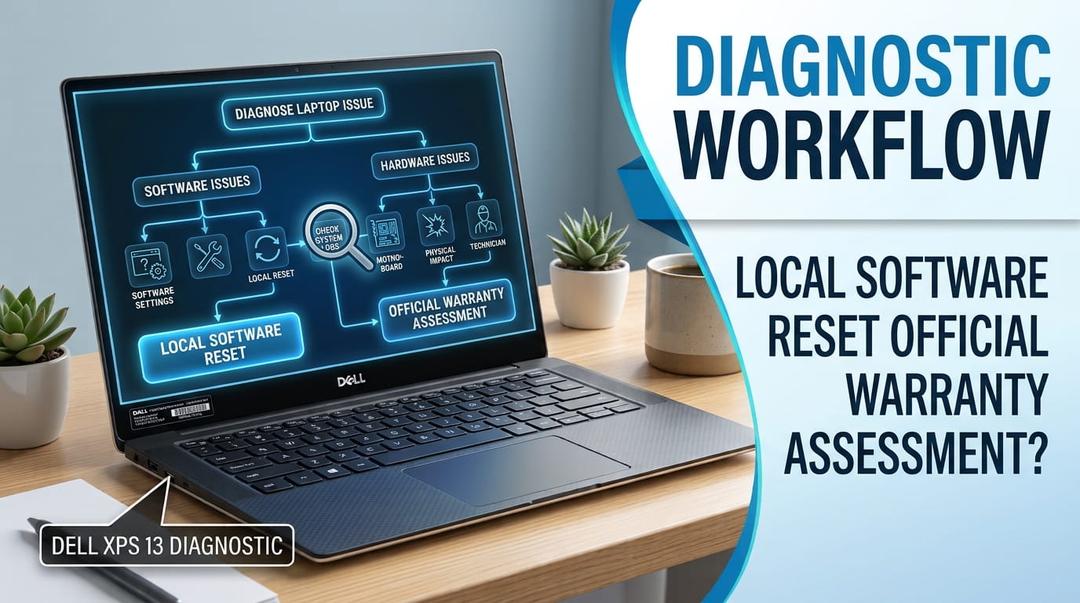
Figure 2: Workflow for determining if your laptop requires a local software reset or an official hardware warranty assessment.
Choosing the Right Reset Method: Cloud vs. Local Reinstall
When triggering a Microsoft device reset on Windows 11, you will be prompted to select between two reinstallation pipelines.
| Option | Data Retention | Band width Needed | Best For | Time Estimate |
|---|---|---|---|---|
| Cloud Download | Preserves Personal Files | ~4 GB to 6 GB download | Severe system corruption where local recovery files may be compromised. | 45 - 90 Minutes |
| Local Reinstall | Preserves Personal Files | None (uses local disk image) | Slow internet connections or standard OS cleanup and performance refresh. |
Understanding Regional Support & Warranty Rules
If a factory reset fails to resolve your fault code (such as recurring WHEA_UNCORRECTABLE_ERROR crashes), you will need to open a support ticket with your laptop manufacturer (such as Microsoft Surface, Dell, HP, or Lenovo).
Keep the following warranty and regional support factors in mind:
- Global vs. Regional Warranty Restrictions:
- Many laptop warranties are region-locked to the country of original purchase. If you bought your laptop internationally, your local authorized service center may require you to pay handling fees or ship the unit back to the origin market.
- Impact of Software Resets on Warranty Claims:
- Major laptop manufacturers require customers to perform a factory reset or run onboard diagnostics (e.g., Dell ePSA or HP PC Hardware Diagnostics) before issuing a Return Merchandise Authorization (RMA).
- Data Protection & Repair Service:
- Repair centers regularly wipe storage drives during hardware replacements (such as motherboard or SSD repairs). Always back up critical data to Microsoft OneDrive or an external drive before handing over your machine to regional support teams.
Pre-Reset Checklist
Before initiating your Windows 11 reset, ensure you complete these final verification steps:
- [ ] Plug in your laptop charger: Do not attempt a system reset on battery power.
- [ ] Back up secondary locations: Ensure files stored directly on
C:\outside standard user folders are saved to external storage. - [ ] Disable BitLocker Encryption: If BitLocker is active, retrieve your recovery key from your Microsoft Account to avoid locked partitions after the reset.
- [ ] Record software license keys: Ensure you have login credentials for subscription services and software keys for third-party programs.
Summary & Next Steps
- Try a Basic Reset First: For system freezes, driver crashes, and general slowdowns, use Reset this PC > Keep my files to fix software corruption.
- Evaluate Fault Codes: If your laptop encounters hardware-level BSODs like
WHEA_UNCORRECTABLE_ERROR, skip repeated resets and contact technical support. - Check Regional Support: Verify your device’s warranty status with your manufacturer to ensure local repair coverage before shipping your laptop for servicing.
Experiencing a similar issue? Contact us for a no-obligation quote. We're here to help.
If you know what parts to look for, please visit Tech and Bids to search for what you need.