You press the power button. The Hisense logo appears on screen. And then... nothing. It just sits there. The logo glows back at you. No menu. No Netflix. No response to the remote.
This is the "stuck on logo" or "boot loop" failure. It is one of the most frustrating TV problems because the screen clearly works—the TV just won't finish starting up.
The good news: Two of these fixes cost you nothing and take five minutes.
The bad news: If they don't work, the mainboard's eMMC storage chip has likely failed. But that is not the end of your TV. A replacement mainboard is affordable and easy to install.
Let's diagnose your TV.
What is Happening Inside Your TV?
When you turn on a Hisense Smart TV, this is what should happen:
- Power on → Red light turns blue or white
- Bootloader starts → Hisense logo appears
- Operating system loads (from eMMC chip) → Logo disappears, menu appears
- Apps and services initialize → Ready to watch
If the TV gets stuck on step 2 or 3, the eMMC chip (embedded multimedia card) cannot read the operating system properly. It tries, fails, and tries again forever.
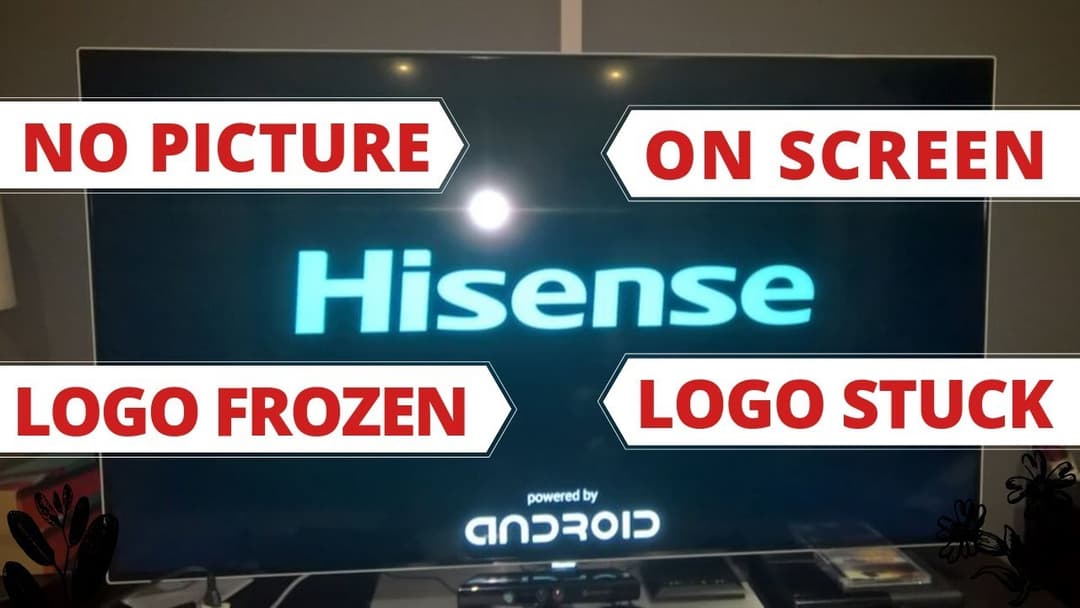
Hisense TV boot stuck on logo.
Try These 3 Fixes First (No Tools Required)
Fix #1: The Deep Power Cycle (Clear Temporary Corruption)
Sometimes the TV's temporary memory (cache) becomes corrupted. This fix clears it.
Step-by-step:
- Unplug the TV from the wall outlet.
- Press and hold the physical power button on the TV itself (not the remote) for 60 seconds.
- While still holding the power button, plug the TV back in.
- Continue holding for another 30 seconds, then release.
- Wait 2 minutes, then try turning the TV on normally.
What to expect: If the TV was stuck due to a corrupted cache, it should boot normally within 90 seconds. If it still hangs on the logo, move to Fix #2.
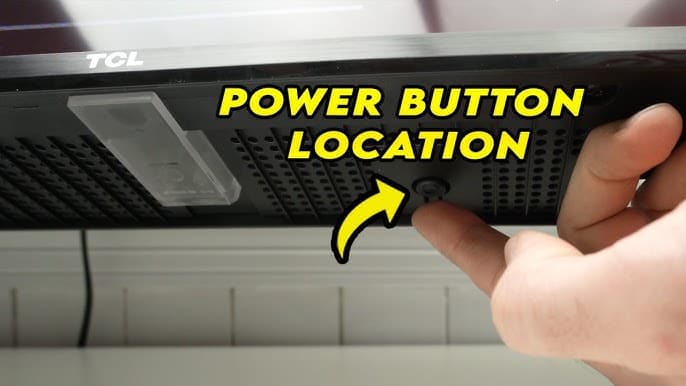
Close-up of a finger pressing the small physical joystick or button panel on a TV
Fix #2: Forced Factory Reset (Via Remote or Joystick)
If the cache clear didn't work, the operating system files themselves may be scrambled. A factory reset wipes all user data and attempts to rebuild the OS from a protected recovery partition.
Method A (If you have a Hisense remote with a physical number pad):
- Unplug the TV.
- Press and hold the Volume Down (-) button on the TV's physical panel.
- While holding Volume Down, plug the TV back in.
- Keep holding until you see "Factory Reset" or "Recovery Mode" on screen (may take 30–60 seconds).
Method B (Most 2020+ models – no number pad):
- Unplug the TV.
- Press and hold the Input button on the TV's physical panel.
- Plug the TV back in while holding Input.
- Release when you see a menu with "Reset All" or "Wipe Data".
Method C (The button combination for older models):
- Unplug the TV.
- Press and hold Vol Down + Channel Down on the TV panel.
- Plug the TV back in while holding both.
- Continue holding for 45 seconds.
What to expect: The TV will show a blue or black screen with white text. Use the volume buttons to navigate to "Factory Reset" or "Wipe Data/Factory Reset". Press Power or OK to confirm.
Warning: A factory reset erases all your saved Wi-Fi passwords, app logins, and picture settings. It does NOT erase the TV's firmware—that stays intact.
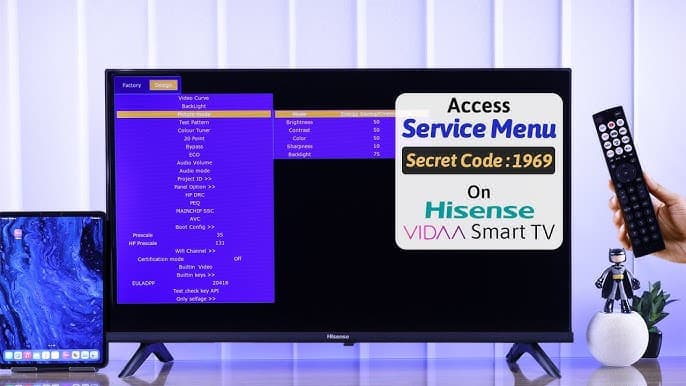
Hisense recovery mode factory reset screen
Fix #3: USB Firmware Reinstallation (The Last Hope)
If the factory reset fails or the TV won't even enter recovery mode, the operating system on the eMMC chip is corrupted beyond self-repair. You need to reinstall the firmware from a USB drive.
What you need:
- A USB 2.0 drive (4GB to 16GB, formatted to FAT32)
- A Windows PC or laptop
- Your TV's exact model number (e.g., 55U7H, 43A6G, 65U8G)
Step-by-step:
- On a PC, format the USB drive as FAT32 (not NTFS or exFAT).
- Search for your TV's firmware on the official Hisense support website or our firmware archive.
- Download the
.pkgor.binfile (do not rename it). - Copy the file to the root of the USB drive (not inside any folder).
- Unplug the TV from power.
- Insert the USB drive into a USB 2.0 port on the TV (usually the white or black port, not blue).
- Press and hold the physical power button on the TV.
- Plug the TV back in while holding the button.
- Release the button when you see "Updating software" or a progress bar on screen.
What to expect: The update takes 5–15 minutes. Do not unplug the TV or remove the USB drive during the update. The TV will restart automatically when finished.
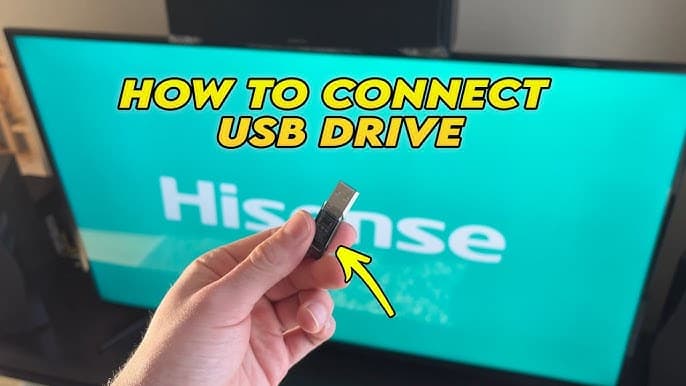
Hisense TV about to be have its firmware updated via USB.
If the USB update works: Congratulations. Your TV is fixed. The eMMC chip was corrupted but not physically dead.
If the USB update fails (TV ignores USB or still stuck on logo): The eMMC chip has suffered a hardware failure. No amount of software resets will fix it. You need a new mainboard.
The eMMC Chip: Why Hisense Mainboards Die
The eMMC chip is the TV's equivalent of a computer's hard drive. It stores the operating system, your apps, and settings.
These chips have a limited lifespan—typically 3–7 years depending on usage. When they fail:
- ❌ The TV cannot read the OS
- ❌ The logo appears but boot stops
- ❌ USB firmware updates are ignored
- ❌ No software fix will work
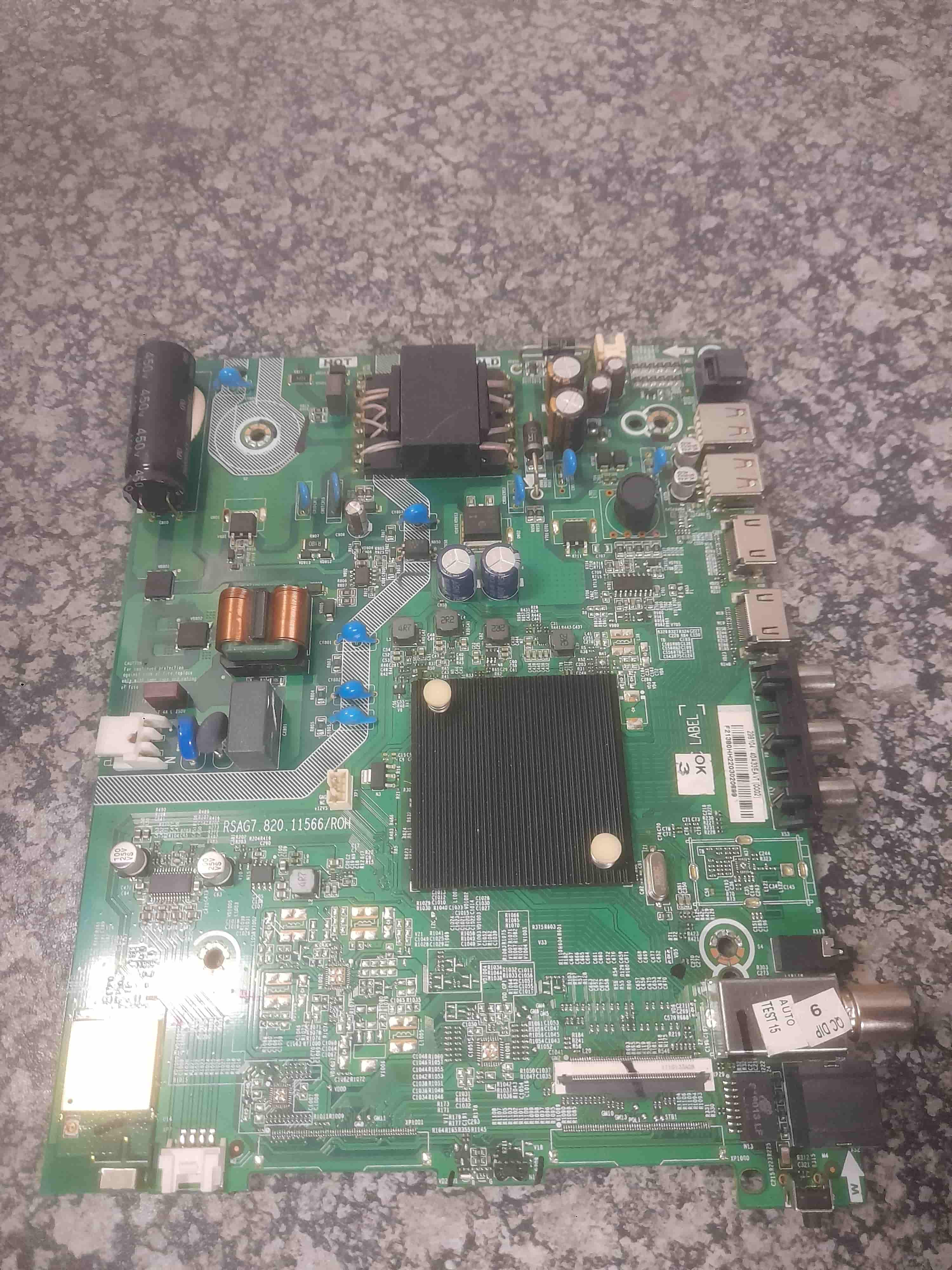
The solution: Replace the entire mainboard. The mainboard contains the eMMC chip, processor, RAM, and all input ports. It is a single, replaceable unit.
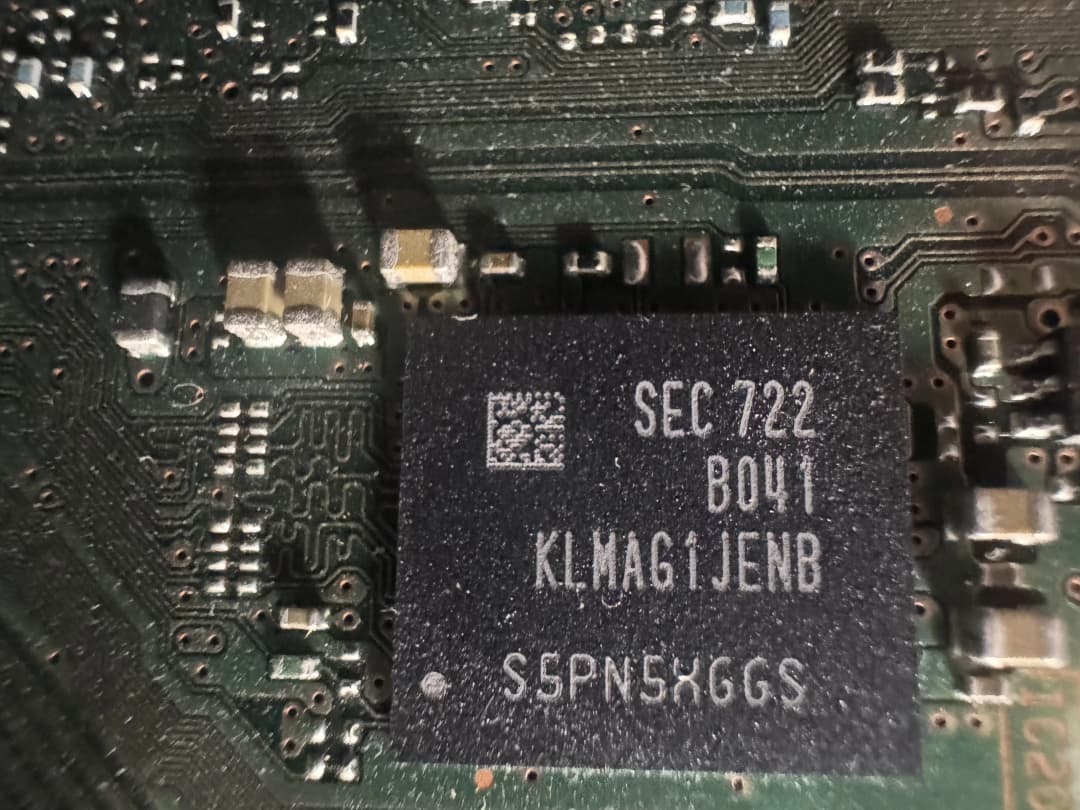
_A photo of a Hisense TV mainboard with an eMMC chip on it
Replacing the Mainboard: Easier Than You Think
A mainboard replacement sounds intimidating. It is not.
You need:
- A Phillips screwdriver
- 15–20 minutes
- Your TV's RSAG number (find it on the white sticker on the existing mainboard)
The process:
- Unplug the TV and remove the back cover.
- Locate the mainboard (where HDMI and USB ports connect).
- Take a photo of all cable connections (for reference).
- Unplug all ribbon cables and wire harnesses.
- Remove 3–6 screws holding the board in place.
- Install the new board (screws go back in).
- Reconnect all cables (match your photo).
- Replace the back cover and test.
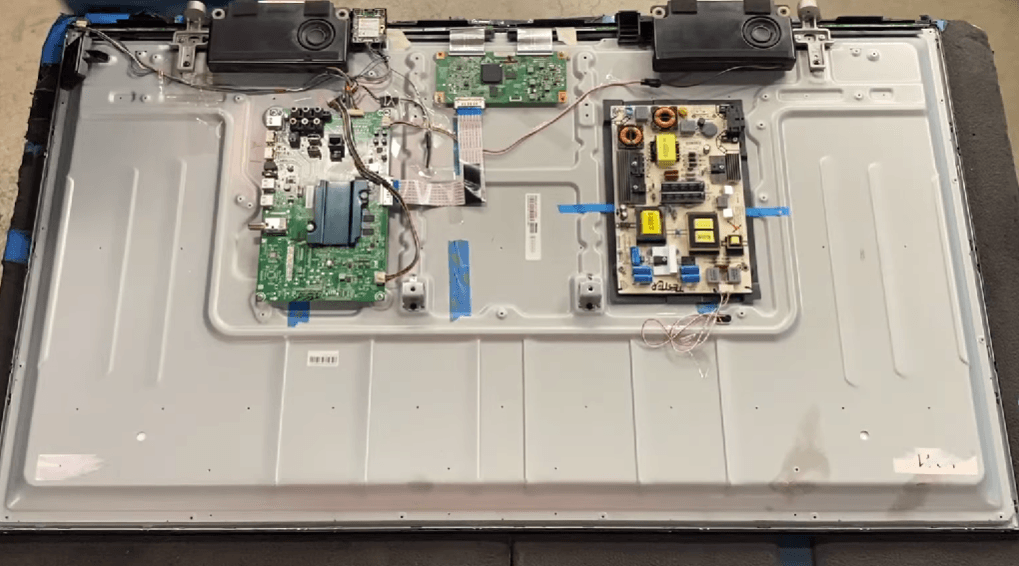
Hisense TV mainboard replacement process
When to Accept Defeat (And Buy a New Mainboard)
| Situation | Diagnosis | Action |
|---|---|---|
| Deep power cycle + factory reset + USB firmware all fail | Dead eMMC chip | ✅ Replace mainboard |
| TV occasionally boots after 5+ attempts | Failing eMMC (intermittent) | ✅ Replace mainboard (failure is imminent) |
| USB update works, but TV gets stuck again within a week | eMMC has bad sectors | ✅ Replace mainboard |
| TV is 10+ years old and parts are unavailable | End of life | ❌ Consider new TV |
Get a Replacement Mainboard – Save 15% Today
If you've tried all three fixes and your Hisense TV is still staring at you with that frozen logo, you need a new mainboard.
We have tested, certified Hisense mainboards in stock for 90% of models.
- ✅ Each board is tested for HDMI, USB, boot sequence, and Wi-Fi
- ✅ RSAG number matching (send us yours, we confirm compatibility)
- ✅ 30-day money-back guarantee
- ✅ Free South Africa shipping on orders over R800
Special Offer for Readers Who Tried These Fixes
You did the work. You tried the free fixes. Now get 15% off your first mainboard purchase when you subscribe to our Latest Inventory Newsletter.
What you get:
- 📧 Weekly restock alerts for Hisense mainboards
- 🔧 DIY repair tips and video guides
- 🎫 Exclusive subscriber-only discounts (including this 15% off)
- ⏱️ Unsubscribe anytime – no spam, just repairs
After subscribing, check your email for your unique discount code. Valid for 30 days on any mainboard purchase.
Need Help Identifying Your Mainboard?
Not sure which RSAG number you need? Send us a photo of your existing mainboard.
WhatsApp: +27 66 446 6542 – Send "STUCK ON LOGO" plus a clear photo of your board.
Email: info@nativeelements.co.za – Subject: "Mainboard ID Request"
We will reply within 2 hours with your exact RSAG number and a direct purchase link.
Summary: Your Action Plan
| Step | Action | Time | Cost |
|---|---|---|---|
| 1 | Deep power cycle (unplug + hold button) | 3 minutes | Free |
| 2 | Forced factory reset (remote/joystick method) | 5 minutes | Free |
| 3 | USB firmware reinstall | 15 minutes | Free (if you have a USB drive) |
| 4 | If all fail – order replacement mainboard | 20 minutes install | R650 – R950 |
| 5 | Subscribe to newsletter for 15% off | 30 seconds | R0 |
Don't throw away a TV that only needs a new mainboard. Fix it for less than the cost of a new smart TV. Your wallet—and the planet—will thank you.
Experiencing a similar issue? Contact us for a no-obligation quote. We're here to help.