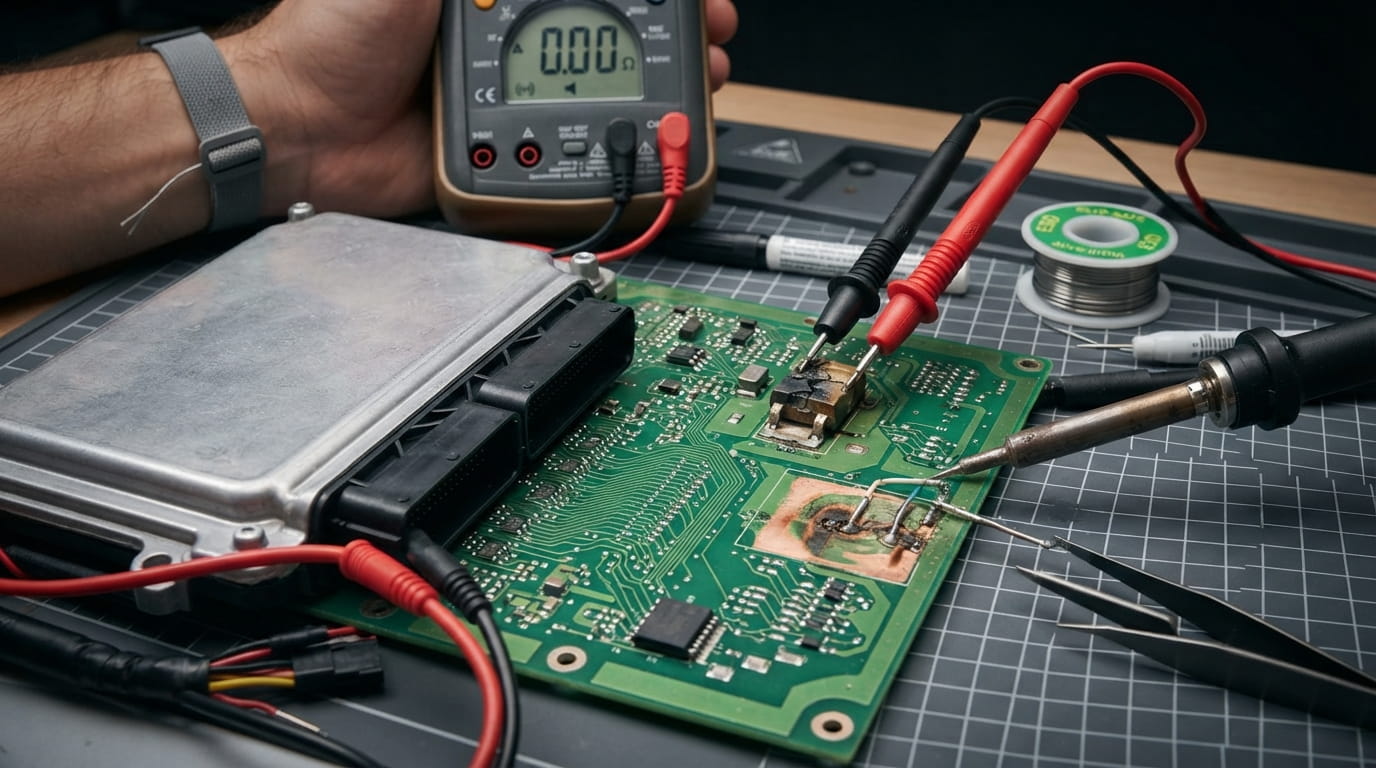
The Click of Death... or Just a Broken Port?
If you have a Western Digital My Passport or Elements external drive that suddenly stopped being recognized by your computer—no clicks, no whirring, just silence or a faint "blink" of a light—the issue might not be the hard drive itself. Often, the culprit is the USB 3.0 Micro-B port on the small interface board.
These ports are surface-mounted and endure a lot of mechanical stress. A slight bump while the drive is plugged in can snap the internal pins or crack the solder joints.
This guide walks you through diagnosing and replacing that faulty USB port.
Disclaimer: This repair involves high-temperature soldering and fine-pitch SMD work. It is easy to damage the board or the drive enclosure. If your drive contains the only copy of irreplaceable data, consider consulting a professional data recovery service first.
Tools & Requirements
Before you start, you'll need to gather the following:
- Soldering Station: With a fine tip (conical or chisel).
- Hot Air Rework Station (Recommended): For removing the old port cleanly.
- Flux: Liquid or paste flux is essential for clean joints.
- Solder: Fine-gauge leaded solder (63/37 is great) for lower melting points.
- Solder Wick / Braid: To clean up pads.
- Tweezers: Precision tweezers for handling the small port.
- Multimeter: For continuity testing.
- Small Screwdrivers: Torx (usually T6 or T8) for some WD models.
- Plastic Opening Tools: Spudgers or guitar picks to separate the enclosure without scratching it.
- Replacement USB 3.0 Port: You need the specific Micro-B USB 3.0 (Receptacle) . These are readily available on electronics supplier sites. Ensure the pinout matches your board.
Step 1: Diagnose the Port
First, let's confirm it's the port and not the drive mechanism.
- Listen: Plug the drive into your computer. Do you hear the platters spinning? A faint whirring? If yes, the drive motor is getting power. If you hear clicking, that's a mechanical failure (different issue). If you hear nothing, power isn't reaching the drive.
- Inspect: Use a bright light and a magnifying glass. Look at the USB port on the drive's small circuit board. Do you see any:
- Cracked solder joints at the base of the port?
- A loose, wiggly port?
- Bent or broken metal tabs inside the port?
- The Wiggle Test (Carefully): Gently try to move the port up and down. If it moves, the anchor points (the large tabs on the side) have broken their solder joints.
Step 2: Disassemble the Drive
WD external drives are notoriously difficult to open without breaking the plastic clips. Patience is key.
- Locate the Seam: Modern WD drives (My Passport, Elements) are snapped together. There is usually a small gap near the USB port or along the sides.
- Insert the Spudger: Slide a guitar pick or plastic opening tool into the seam.
- Work Your Way Around: Gently slide the tool along the edge, unclipping the plastic tabs one by one. You will hear popping sounds. Do not use a metal screwdriver, as it will mar the plastic and damage the internal casing.
- Separate: Once all clips are free, carefully lift the top cover. The drive is usually held in place by small rubber grommets or is sitting in a sled.
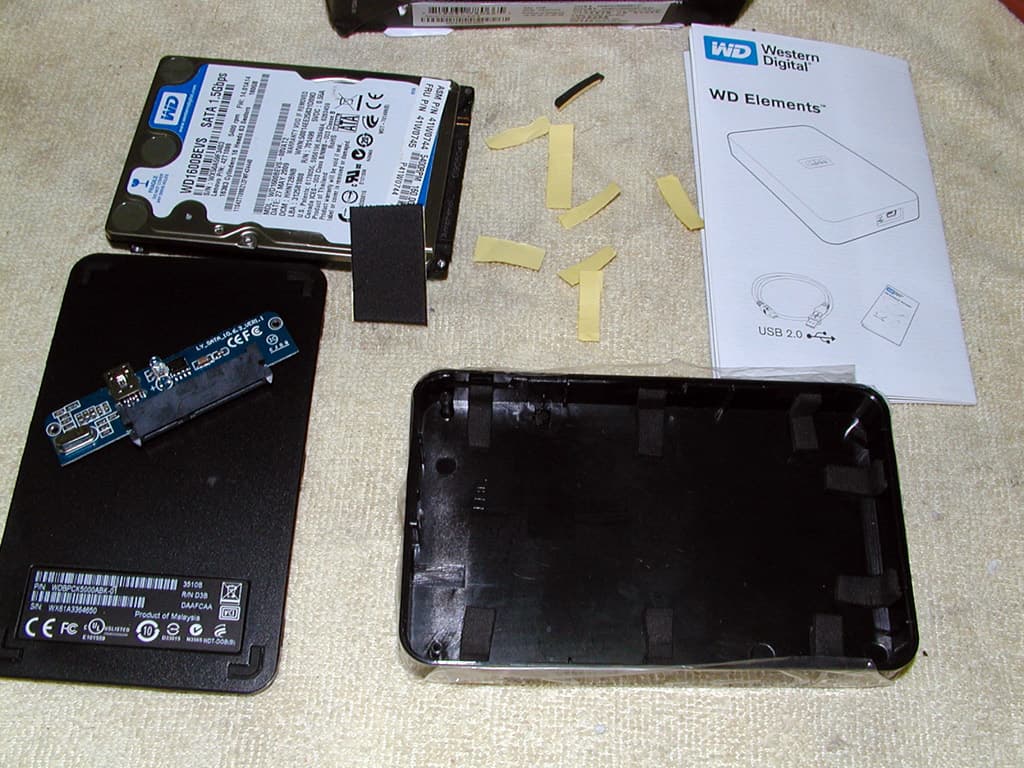
The drive is usually held in place by small rubber grommets or is sitting in a sled.
Step 3: Access the Circuit Board
- Remove Screws: There are usually small Torx screws holding the small interface board to the drive chassis and the USB connector in place. Remove these.
- Detach the Board: Carefully lift the small green PCB away from the hard drive body. It connects via standard SATA pins—just lift it straight up.
- Note: Do not touch the exposed SATA pins on the hard drive itself.
Step 4: Remove the Faulty Port (The Hard Part)
This is the most delicate step. You have two options: a soldering iron or a hot air station.
Method A: Hot Air (Recommended)
- Apply flux generously to all the pins on the port.
- Using your hot air station (around 350-380°C / 660-715°F) with medium airflow, heat the area evenly.
- Focus on the large anchor tabs first, then the signal pins.
- Once the solder melts, gently grip the port with tweezers and lift it away.
Method B: Soldering Iron (The "Destroy the Port" Method) If you don't have hot air, you can sacrifice the old port.
- Use flush cutters to snip the metal shell of the USB port to relieve stress.
- Use a heavy tip on your iron to add fresh solder to the large anchor tabs (to mix with the old solder).
- Using tweezers or pliers, heat one anchor tab while gently wiggling that side free. Repeat for the other side. The goal is to remove the metal shell.
- Once the shell is gone, you can use a soldering iron and tweezers to remove the individual signal pins one by one.
- Crucial: After removing the port, use solder wick and flux to clean all the pads on the PCB. They must be flat and clear of old solder and bridges. Check that you haven't lifted any pads!
Step 5: Prepare the New Port
- Take your new USB 3.0 port.
- Check the pinout against the old port or the markings on the PCB.
- Tin the large anchor tabs on the new port with a small amount of solder. This will make attaching them to the board easier.
Step 6: Solder the New Port
- Position: Place the new port onto the PCB. Ensure it sits flush against the board and aligns perfectly with the solder pads.
- Tack the Anchors: Heat one of the large side anchor points while holding the port firmly in place. This will secure the port and ensure it is perfectly aligned. Solder the other anchor.
- Solder the Pins: Now, solder the 9 pins (5 in the front for USB 3.0, 4 in the back for USB 2.0 compatibility).
- Apply flux to the pins.
- Touch the pin and the pad simultaneously with your iron tip.
- Feed a tiny amount of solder into the joint. It should flow smoothly.
- Avoid creating solder bridges between pins. If you do, use solder wick to remove the excess.
Solder Joint Checklist
- ✓ Anchor points are solid and the port doesn't wiggle.
- ✓ All 9 pins have a clean, shiny solder cone.
- ✓ No visible solder bridges between pins.
- ✓ No solder balls or debris on the board.
Step 7: Test Before Reassembly
This is the most satisfying step.
- Carefully plug a USB cable into the newly soldered port.
- Plug the other end into your computer.
- Listen: You should hear the drive spin up.
- Check: Does it appear in "My Computer" or "Disk Utility"?
- If yes, congratulations! Power down the system and unplug the drive.
Step 8: Reassemble
- Place the PCB back onto the drive's SATA connector.
- Replace the small screws that hold the board in place.
- Carefully slide the drive assembly back into the plastic housing. Make sure the USB port aligns perfectly with the cutout in the case.
- Snap the case back together. It should click firmly.
Conclusion
You've just saved a hard drive from the landfill and potentially recovered valuable data, all for the cost of a R32 USB port and an hour of your time. While WD makes these enclosures frustrating to open, the internal electronics are usually standard and repairable.
Final Thoughts
If after your repair the drive still doesn't work, double-check your solder joints with a multimeter for continuity. If you're uncomfortable with DIY repairs, consider consulting us for a professional repair.